Guide
Can't Copy Text From a PDF on Mac? Why It Happens and 4 Fixes
Preview won't select or copy text in your PDF? It's a scan, copy-restricted or broken. How to tell in ten seconds, and the fix for each one.
Site blocking copy, right-click or selection? Four Mac methods that work: Reader view, print to PDF, page source and screen OCR, and when to use each.

Published 30 October 2026
Try these in order. (1) Safari Reader view (⇧⌘R) often strips the copy-blocking along with the clutter. (2) Print → Save as PDF, then copy from the PDF. (3) View the page source if the text is in the HTML. (4) Screen OCR works on anything you can see, including text drawn as images or on canvas. In our test, OCR read a copy-protected article word for word, including the °C and an en dash.
Need to copy text from a website that won't let you? You find the paragraph you need, drag to select it, and nothing happens. Or right-click is disabled, or the copied text pastes as "Copying is not allowed". Sites do this to discourage scraping, but it also blocks normal readers who just want to quote a recipe, save a reference or translate a passage.
Here's what works on a Mac, quickest first.
There are three techniques, and each needs a different fix:
| Technique | What you notice | Beaten by |
|---|---|---|
CSS user-select: none |
Text won't highlight | Reader view, print to PDF, page source, OCR |
| JavaScript blocking copy or right-click | Highlights, but copy or right-click does nothing | Reader view, disabling JavaScript, OCR |
| Text drawn as an image or on canvas | It's not really text at all | Only OCR |
Press ⇧⌘R in Safari, or click the Reader icon in the address bar. Safari re-renders the article in its own clean layout, which usually drops the site's selection blocking. Select and copy normally.
It only works on article-style pages. Shops, dashboards and web apps don't get a Reader button.
Press ⌘P, choose Save as PDF, and open the file in Preview. The text usually comes across selectable, even when the page blocked it. Some sites hide content when printing, so check the PDF is complete.
If the text is in the page's HTML, View Source (⌥⌘U in Safari with the Develop menu enabled, or right-click > View Page Source in Chrome) shows it in plain form. Use ⌘F to find your paragraph. This is fiddly on modern sites, where content is often loaded by scripts.
If you can see it, OCR can read it, whatever the site does. That includes text rendered as images or on canvas, which nothing else handles.
We built a test page with selection disabled and a "Copying is disabled" banner:
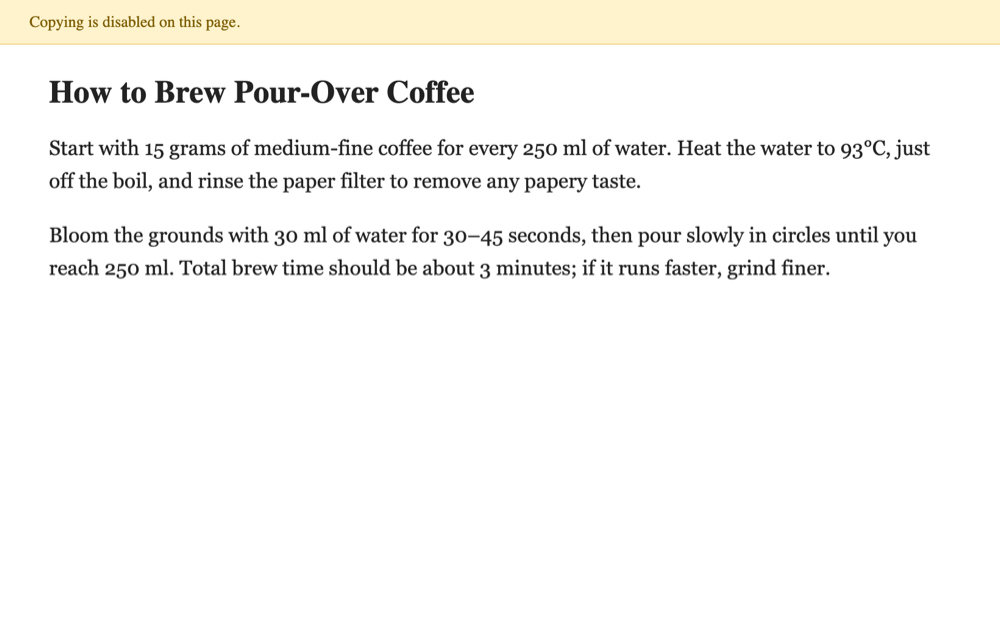
Then we read it with Apple's on-device text recognition. The output matched the page word for word, including "93°C" and the en dash in "30–45 seconds":
How to Brew Pour-Over Coffee
Start with 15 grams of medium-fine coffee for every 250 ml of water. Heat the water to 93°C, just
off the boil, and rinse the paper filter to remove any papery taste.
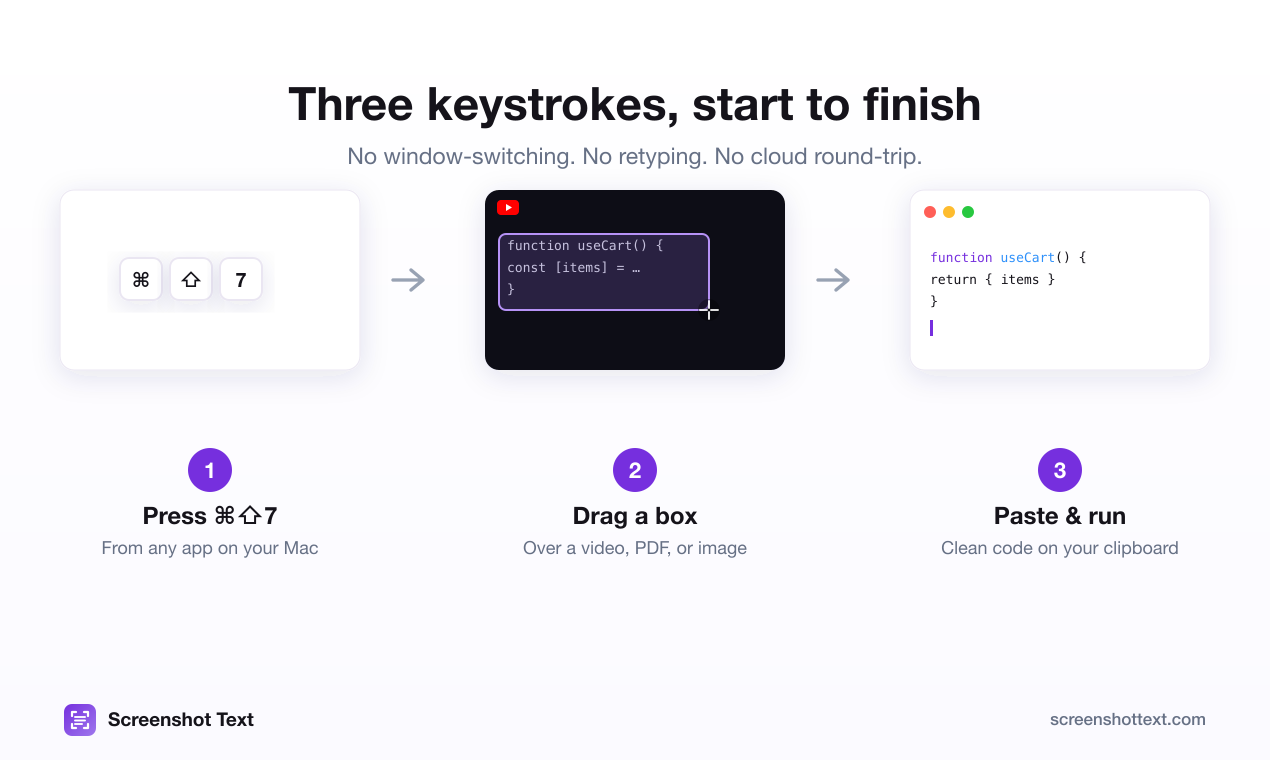
The free way to do this is a screenshot (⌘⇧4), then open it in Preview and select the text with Live Text. The one-step way is Screenshot Text: press ⌘⇧7, drag over the paragraph in any browser, and paste. Recognition happens on your Mac, so the page content isn't uploaded anywhere.
Use Normal mode for web text. Optimize for code is only for code. In our test it took this same recipe and turned each sentence into a code comment.
If the page is a PDF rather than HTML, see can't copy text from a PDF on Mac. For how the built-in route works, see does Mac have OCR?
Whichever you use, quote responsibly. Copying a passage to read, translate or cite is normal. Lifting a whole site's content isn't.
For text in images rather than on a page, see how to extract text from a screenshot on Mac.
Usually with CSS that disables selection (user-select: none), or JavaScript that blocks right-click and the copy event. Some sites render text as images or on a canvas, so there's no text to copy at all.
No, but often. Reader view re-renders the article's text in Safari's own layout, which drops most selection blocking. It only appears on article-like pages, not on web apps or dashboards.
Copying a passage for your own notes, research or to quote with attribution is generally fine. Republishing someone's content wholesale isn't, whatever method you use.
Sometimes. It defeats JavaScript-based blocking, but not CSS selection blocking, and many modern sites don't render at all without JavaScript. Reader view or OCR are usually quicker.
Reach out on X and I'll get back to you personally.
Keep reading
Preview won't select or copy text in your PDF? It's a scan, copy-restricted or broken. How to tell in ten seconds, and the fix for each one.
Yes: macOS has built-in OCR called Live Text, in Preview, Photos and Safari. How to use it, where it fails (code, Chrome, Zoom) and what to use instead.
OCR turns code in screenshots into flat lines, breaking Python and JavaScript. Why it happens, the free fix, and how to copy code with indentation intact.
On-device OCR plus code repair. Free for 5 captures a day, $39 to own for life.