Guide
How to Copy Code From a Screenshot Without Breaking the Indentation
OCR turns code in screenshots into flat lines, breaking Python and JavaScript. Why it happens, the free fix, and how to copy code with indentation intact.
Yes: macOS has built-in OCR called Live Text, in Preview, Photos and Safari. How to use it, where it fails (code, Chrome, Zoom) and what to use instead.

Published 25 October 2026
Yes. Since macOS Monterey, Macs have built-in OCR called Live Text. It lets you select and copy text inside images in Preview, Photos and Safari (and, from macOS Ventura, in some paused videos). It's free and accurate for ordinary text. It won't help when the text isn't in one of those apps (a Zoom share, a Chrome video, a game, a remote desktop), and it flattens code: indentation disappears. For those, use a screen OCR tool that works on any part of the screen.
Yes, every Mac has built-in OCR (optical character recognition), so it can read text in pictures without any extra software. Apple calls it Live Text, and it has shipped with macOS since Monterey (version 12). It's genuinely good. But it only works in a handful of places, and it has two blind spots worth knowing before you rely on it.
Live Text is built into Apple's own apps:
Photos and Safari work the same way: hover, drag, copy. If nothing happens at all, check System Settings > General > Language & Region and make sure Live Text is on. Apple notes it isn't available in every language or region.
Live Text uses Apple's Vision text-recognition engine. We ran that same engine (the accurate setting, with language correction on, which is the closest match to Live Text) on two screenshots.
A web article. The result was essentially perfect: every word, the "93°C" and the en dash in "30–45 seconds" all came through. For ordinary text, the built-in OCR is all most people need.
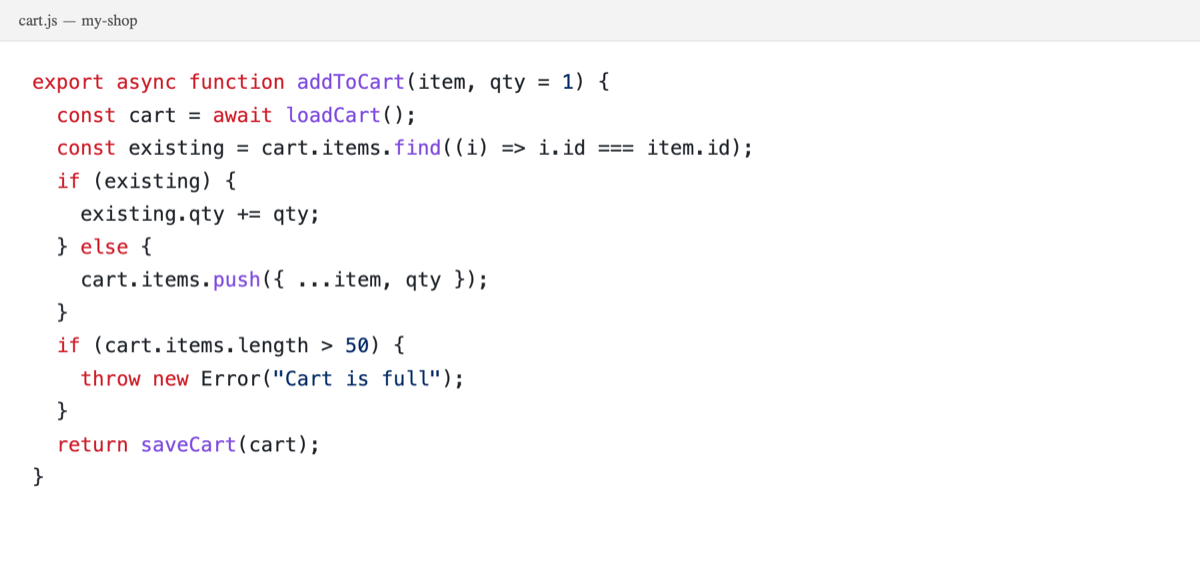
A JavaScript file in a code editor. This is where it falls apart:
export async function addToCart(item, qty = 1) {
const cart = await loadCart();
const existing = cart.items.find((i) => i.id === item.id);
if (existing) {
existing.qty += aty;
} else {
cart.items.push(f ...item, qty });
}
if (cart.items.length > 50) {
throw new Error"Cart is full");
}
return saveCart (cart);
}
Three things went wrong, and they're typical:
qty became aty, ({ became (f and a ( vanished.saveCart(cart) became saveCart (cart).There's more on why this happens in why OCR breaks code.
| You want to copy text from… | Live Text? |
|---|---|
| A screenshot or photo (open it in Preview) | Yes |
| An image on a web page in Safari | Yes |
| An image in Chrome, Slack, Discord or Figma | No. Save it and open it in Preview first |
| A paused YouTube video in Chrome | No |
| A Zoom or Teams screen share | No |
| A remote desktop, VM or game window | No |
| A whole scanned PDF, made searchable | No, only page by page |
| Code you want to paste and run | Partly: the text arrives, the indentation doesn't |
The pattern: Live Text works on files inside Apple's apps. Anything that's just pixels on your screen in another app is out of reach, unless you take a screenshot, open it in Preview and select from there. That works, but it's four steps every time.
If you regularly copy text from places Live Text can't reach, a screen OCR app is faster: press a shortcut, drag over any part of the screen, and the text is on your clipboard. Screenshot Text does this with the same on-device Apple engine, so nothing is uploaded. Press ⌘⇧7 in any app, including videos, shared screens, remote desktops and games.
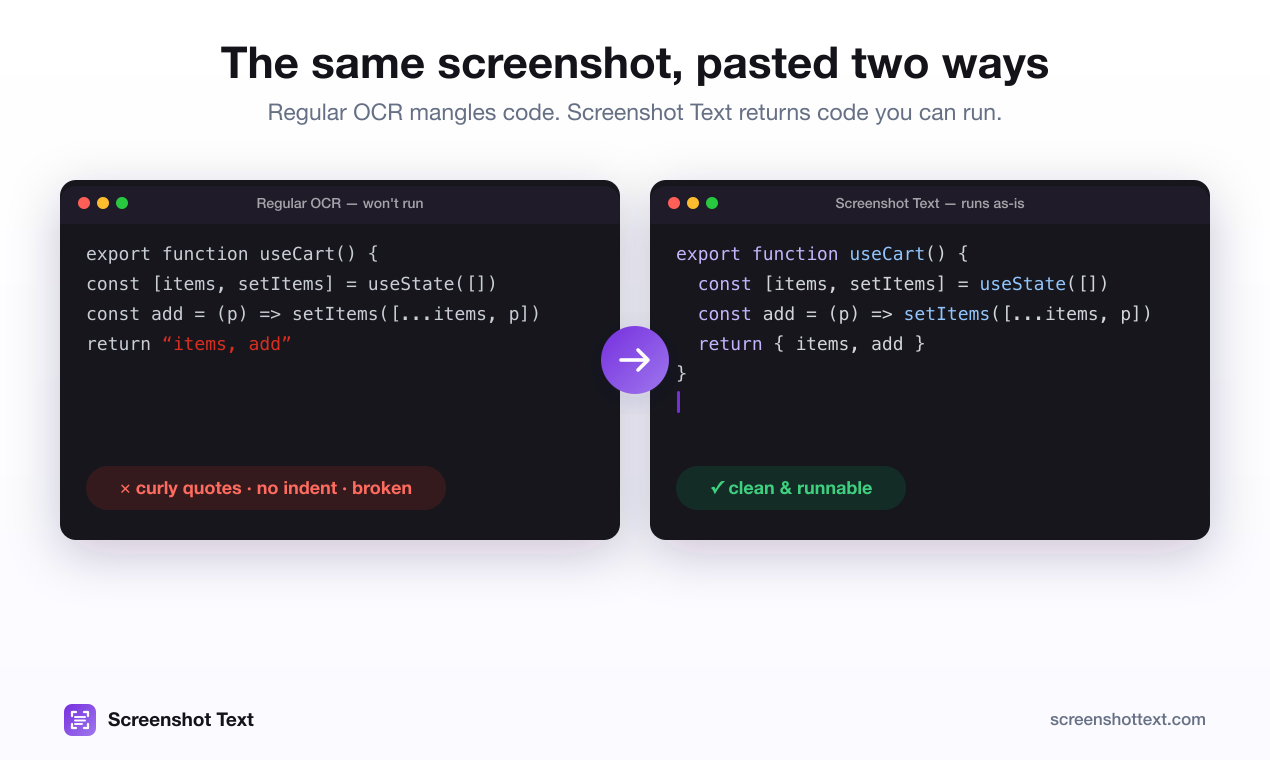
For code, turn on Optimize for code. A small AI model runs on your Mac and restores the indentation and the characters OCR got wrong. On the JavaScript above it returned the function exactly as written, indentation and all, in about nine seconds. Leave it off for ordinary text: the repair model is tuned for code, and in our tests it mangled prose by turning sentences into code comments.
It's free for 5 captures a day, which is enough to see whether it's worth it for you.
Comparing Mac OCR apps? See the best OCR for Mac, or how Screenshot Text compares with TextSniper.
Yes. Live Text, introduced in macOS Monterey, recognizes text in images in Preview, Photos, Quick Look and Safari. You select the text with the pointer and copy it like normal text.
Preview's Live Text works on images and on image-based (scanned) PDF pages: you can select and copy text from a page. It does not convert a whole scanned PDF into a searchable, text-based document. For that you need a dedicated PDF OCR app.
Live Text only works in apps that support it, and it can be turned off. In Preview, choose Tools > Text Selection. In System Settings > General > Language & Region, make sure Live Text is switched on. Some languages and regions aren't supported.
For a single line, usually. For a block of code it isn't: OCR returns flat lines with no indentation, and characters like l, 1 and I get confused. In our tests every code screenshot lost its indentation.
Yes. Live Text runs on your Mac using Apple's on-device text recognition. Your image isn't uploaded to read the text.
Reach out on X and I'll get back to you personally.
Keep reading
OCR turns code in screenshots into flat lines, breaking Python and JavaScript. Why it happens, the free fix, and how to copy code with indentation intact.

Preview won't select or copy text in your PDF? It's a scan, copy-restricted or broken. How to tell in ten seconds, and the fix for each one.
On-device OCR plus code repair. Free for 5 captures a day, $39 to own for life.