Guide
Does Mac Have OCR? Live Text and Preview Explained (and Their Limits)
Yes: macOS has built-in OCR called Live Text, in Preview, Photos and Safari. How to use it, where it fails (code, Chrome, Zoom) and what to use instead.
Preview won't select or copy text in your PDF? It's a scan, copy-restricted or broken. How to tell in ten seconds, and the fix for each one.

Published 27 October 2026
There are three usual causes. (1) The PDF is a scan: it's a picture of text, so there's nothing to select (our test scan had 0 selectable characters). (2) The PDF has copy restrictions: the text is there, but the file's permissions disable Copy. (3) It's been flattened or exported as images. For (1) and (3), use OCR: Preview's Live Text on the page, or a screen OCR tool. For (2), ask the sender for an unrestricted copy, or capture just the passage you need with OCR for your own use.
Can't copy text from a PDF on your Mac? You open it in Preview, try to drag across a paragraph, and nothing highlights. Or it highlights, but Copy is greyed out. The fix depends on which of three problems you have, and it takes about ten seconds to tell them apart.
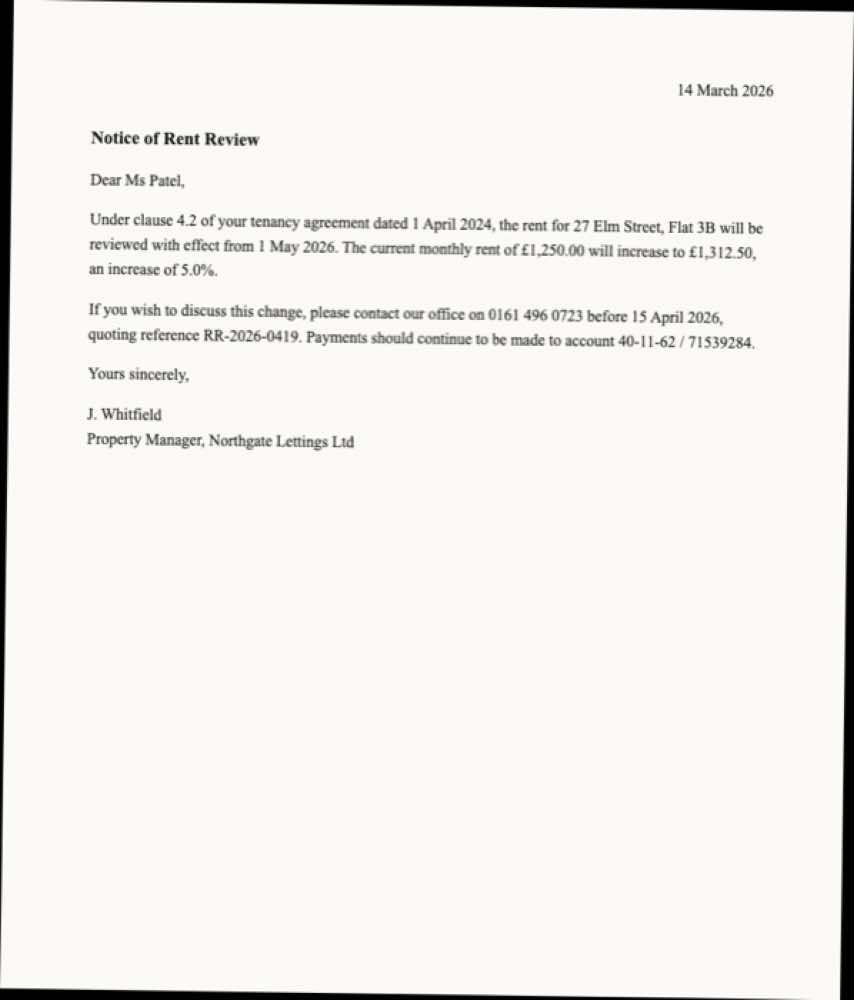
To be sure about the causes, we built two test files from the same one-page letter:
From the outside they behave almost the same: you can't copy. Here's how to tell them apart in Preview:
| What you see | What it means |
|---|---|
| The cursor never turns into a text cursor; dragging draws a box | Scanned or image-only PDF |
| Text highlights, but Edit > Copy is greyed out | Copy restrictions |
| Text highlights but pastes as gibberish or empty | Broken font encoding (common in old or exported PDFs) |
| Asks for a password before opening | Encrypted PDF. You need the password |
For restrictions, open Tools > Show Inspector and click the lock tab. It lists whether copying is allowed.
Since macOS Monterey, Preview can read text in images, and that includes scanned PDF pages. Hover over the text until the cursor becomes an I-beam, drag across the words, and press ⌘C. If nothing selects, turn on Tools > Text Selection.
It works page by page, for selecting passages. It won't turn the whole document into a searchable PDF; you need a dedicated PDF OCR app for that. For a full walkthrough with real accuracy results, see how to copy text from a scanned PDF on Mac.
The author chose to block copying. The clean fix is to ask the sender for an unrestricted copy. For a short quote for your own notes, you can take a screenshot of the passage and read it with OCR. You're copying the pixels on your screen, not unlocking the file.
We screenshotted our restricted letter and ran it through Apple's text recognition. It came back word for word, with one exception worth knowing: both £ signs were read as €. Always check currency symbols and numbers in anything financial.
If the text selects but pastes as nonsense (ÿþÅ and similar), the PDF's fonts don't map characters properly. Ignore the broken text layer and read the page visually instead: take a screenshot of the passage (⌘⇧4), open it in Preview and select the text with Live Text. OCR reads the pixels, so the broken encoding doesn't matter.
If you hit this regularly, a screen OCR shortcut skips the screenshot-open-select routine. With Screenshot Text, press ⌘⇧7, drag over the passage in any PDF viewer (Preview, Chrome's PDF viewer, Acrobat, a web portal), and the text is on your clipboard. Recognition runs on your Mac, so confidential documents stay on your Mac.
Use the default (Normal) mode for documents. Leave Optimize for code off: that's for code, and it tends to reformat ordinary text.
OCR on documents is very good, but in our tests the same handful of errors kept appearing:
If a document is important, compare the pasted text against the original before you use it.
For every way to get text out of a PDF on a Mac, including locked and scanned files, see how to grab text from a PDF on Mac.
The PDF was saved with permissions that don't allow copying. The text exists in the file, but Preview respects the restriction. You can see this under Tools > Show Inspector, on the lock (Permissions) tab.
It's almost certainly a scan or an image-only PDF: each page is a photo of text. Try Live Text (hover over the text in Preview and drag), or use a screen OCR tool to read the part you need.
No. Preview can read text from a scanned page with Live Text, but it doesn't add a permanent text layer to the file. For a fully searchable PDF you need a dedicated PDF OCR app.
Copy restrictions are the author's choice. Quoting a short passage for your own notes or for commentary is usually fine, but don't use OCR to republish someone's protected document. When in doubt, ask the sender for an editable copy.
Reach out on X and I'll get back to you personally.
Keep reading
Yes: macOS has built-in OCR called Live Text, in Preview, Photos and Safari. How to use it, where it fails (code, Chrome, Zoom) and what to use instead.
On-device OCR plus code repair. Free for 5 captures a day, $39 to own for life.