Guide
Does Mac Have OCR? Live Text and Preview Explained (and Their Limits)
Yes: macOS has built-in OCR called Live Text, in Preview, Photos and Safari. How to use it, where it fails (code, Chrome, Zoom) and what to use instead.
OCR turns code in screenshots into flat lines, breaking Python and JavaScript. Why it happens, the free fix, and how to copy code with indentation intact.

Published 26 October 2026
Built-in OCR (Live Text) and most screen OCR apps return code as flat lines with no indentation, and they misread characters like qty → aty or ({ → (f. For one line that's fine. For a block, either re-indent by hand (paste into your editor and use its formatter), or use an OCR tool with a code-repair step. In our test, Screenshot Text's Optimize for code turned a broken capture back into the exact original function, indentation included.
You want to copy code from a screenshot: a snippet someone shared in Slack, a slide, an old blog post with code as an image. Copying the words out is easy now. Getting working code out is a different problem, because the part that makes code run, its structure, is exactly what OCR throws away.
We took a screenshot of this small function in a light-theme editor:
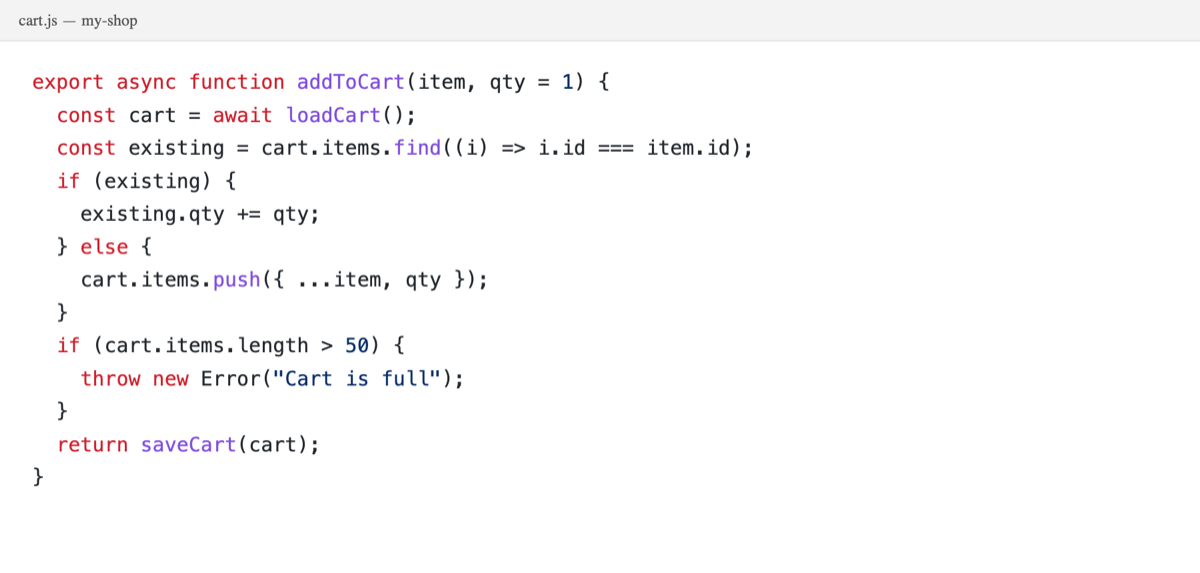
Then we ran Apple's built-in text recognition on it, the same engine behind Live Text. Here's exactly what came back:
export async function addToCart(item, qty = 1) {
const cart = await loadCart();
const existing = cart.items.find((i) => i.id === item.id);
if (existing) {
existing.qty += aty;
} else {
cart.items.push(f ...item, qty });
}
if (cart.items.length > 50) {
throw new Error"Cart is full");
}
return saveCart (cart);
}
Every line is flush left. qty became aty, push({ became push(f, a parenthesis vanished from Error("Cart is full"), and a space crept into saveCart (cart). Two of those would stop the code running, and one (aty) would run and then fail at runtime, which is worse.
Python is worse still, because indentation is the logic. On a frame from a coding tutorial, OCR returned this (first five lines):
def fetch_users(session, limit=10):
url = "https://api.example.com/users"
resp = session.get (url, params={"limit": limit})
if resp.status_code != 200:
raise RuntimeError(f"failed: {resp.status_code)™)
No indentation, a } read as ), and a stray ™. Python won't even parse it.
gofmt, your IDE's Reformat). It rebuilds indentation from the braces.aty-style typos, check quotes are straight (" not ”), and compare brackets.This works for a few lines. For anything longer it's slow and easy to get wrong, which is why most people end up retyping.
Screenshot Text has a setting called Optimize for code. After the on-device OCR, a small open-source code model (Qwen2.5-Coder, running locally through llama.cpp) cleans up the result. It's instructed to fix only OCR damage: indentation, brackets, quotes and stray characters. It may not rename anything or change values.
On the two captures above, it returned:
export async function addToCart(item, qty = 1) {
    const cart = await loadCart();
    const existing = cart.items.find((i) => i.id === item.id);
    if (existing) {
        existing.qty += qty;
    } else {
        cart.items.push({ ...item, qty });
    }
    if (cart.items.length > 50) {
        throw new Error("Cart is full");
    }
    return saveCart(cart);
}
def fetch_users(session, limit=10):
    url = "https://api.example.com/users"
    resp = session.get(url, params={"limit": limit})
    if resp.status_code != 200:
        raise RuntimeError(f"failed: {resp.status_code}")
    users = [u for u in resp.json() if u['active']]
    return users[:limit]
The Python came back byte-for-byte identical to the original source and parses cleanly. The JavaScript matched too (the only difference is four-space instead of two-space indentation, which your formatter settles). Each took a few seconds on an M1 Mac, with nothing uploaded.
l, 1 and I (and O and 0) can look identical. No repair step can know which one was meant. See why OCR breaks code.If you copy a line of code once a month, Live Text plus your formatter is fine. If you regularly lift code from screenshots, slides or paused tutorials, a capture with code repair saves the retyping and the typo hunt. Screenshot Text is free for 5 captures a day, so you can try it on your own screenshots first.
Weighing up tools? Here's how Screenshot Text compares with TextSniper on code, and the wider guide to extracting text from a screenshot on Mac.
OCR engines recognise text line by line and return plain strings. They don't record how far each line was indented, so the leading spaces never make it to your clipboard.
For brace languages like JavaScript, Java or C, yes: a formatter such as Prettier can rebuild indentation from the braces, as long as OCR didn't drop or change any brackets. For Python and YAML it can't, because there the indentation is the structure.
It's told to fix only OCR artifacts and never to rename things, change values or add logic. In our tests it restored the originals exactly. It can't recover characters that are genuinely ambiguous in the font, like l, 1 and I in Courier, so still check before running.
Read it first. OCR mistakes in commands (a dropped character in a path, a misread flag) can do real damage, and curly quotes from screenshots break shell commands.
Reach out on X and I'll get back to you personally.
Keep reading
Yes: macOS has built-in OCR called Live Text, in Preview, Photos and Safari. How to use it, where it fails (code, Chrome, Zoom) and what to use instead.
On-device OCR plus code repair. Free for 5 captures a day, $39 to own for life.