Guide
How to Copy Text From a YouTube Video on Mac (No Extension Needed)
Pause, then grab the text on screen. When Live Text works on YouTube, why it fails in Chrome, and how to copy commands and code from tutorials exactly.
Reel captions and on-screen text can't be selected. How to copy both on a Mac, what OCR gets right and drops, and the free way for post captions.

Published 1 November 2026
There are two kinds of text on a Reel. The post caption (under the video) is real text: on instagram.com you can usually select it, or open the post and copy it. The text burned into the video (the big caption on screen) is pixels, so you need OCR: pause the Reel on the frame, then capture just the text. In our test, OCR read a Reel's on-screen caption perfectly, including 1:5:5, 24°C and 30°. It dropped the emoji.
Here's how to copy text from Instagram Reels and captions on a Mac. Reels are full of useful text: recipes, tips, step-by-step lists. It's usually burned into the video, so you can't select it, and Instagram's apps don't make even the normal caption easy to copy. Here's how to get both onto your Mac's clipboard.
| Text | What it is | How to copy it |
|---|---|---|
| The post caption under the Reel | Real text | Select it on instagram.com, or use the post's menu |
| On-screen text in the video | Pixels in the video | OCR on a paused frame |
| Comments | Real text | Select on instagram.com (or OCR if selection is fiddly) |
Open the Reel on instagram.com in Safari or Chrome. Click more to expand the caption, then drag to select it and press ⌘C. If the site makes selection awkward, any of the OCR methods below works on the caption too.
The big text on top of the video is part of the image. You need to pause and read it with OCR.
Free method: pause the Reel, press ⌘⇧4 and drag over the text to take a screenshot, open the screenshot in Preview, select the text with Live Text, and copy. It's four steps, but it works.
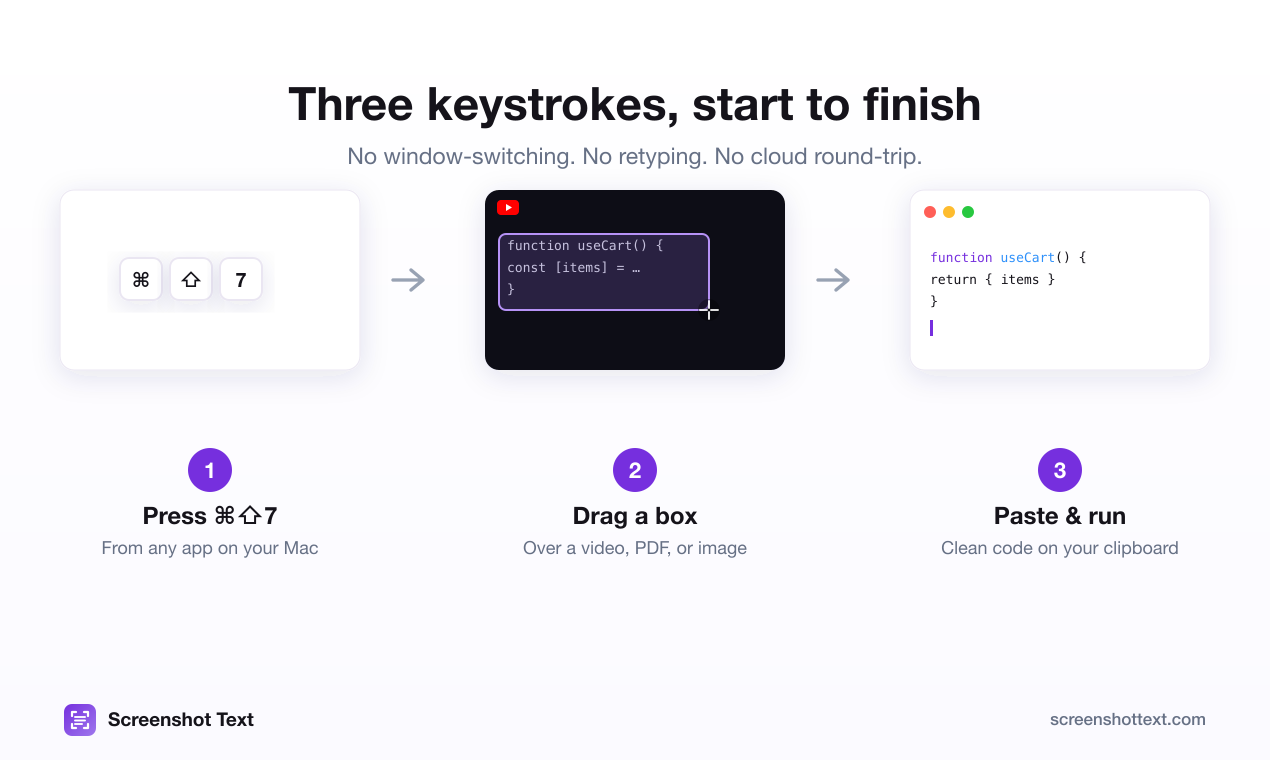
One-step method: pause the Reel, press ⌘⇧7 in Screenshot Text, drag over the caption, and paste. Nothing is uploaded; recognition happens on your Mac.
We made a Reel-style frame with the typical white, outlined caption over a busy background:
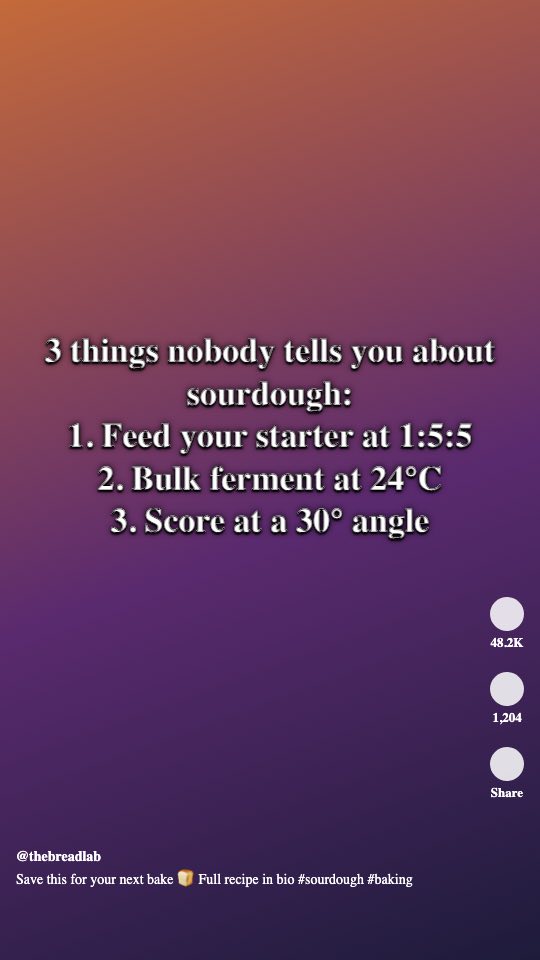
Selecting just the caption, Apple's on-device text recognition returned:
3 things nobody tells you about
sourdough:
1. Feed your starter at 1:5:5
2. Bulk ferment at 24°C
3. Score at a 30° angle
That's word for word, including the ratio, the degree signs and the numbering. The heavy outline that makes captions readable on video didn't confuse it.
The description under the video came through too, @thebreadlab and hashtags included, except the 🍞 emoji, which was silently dropped. In a similar test on TikTok-style captions, an emoji came out as * and arrows (→) as -*. Expect to tidy symbols by hand.
Not all Instagram text is in Reels. Educational accounts post carousels: square slides of text you swipe through. They're images, so the same OCR approach works, one slide at a time. We tested a typical tip slide:
TIP 2 / 5
Name your files like a pro
Use YYYY-MM-DD at the start so they sort by date.
Avoid spaces: use hyphens instead, e.g. 2026-11-01-invoice-
acme.pdf
@organisedstudio • swipe -
All correct, with two things to watch:
-. Symbols like arrows aren't reliably recognised.invoice- / acme.pdf). Usually you delete a hyphen at a line break, but here it's part of the filename. Look before you join.Stories: instagram.com shows Stories on a Mac too. They move on quickly, so use the pause button on the Story before capturing.
If it's a video full of code (a programming Reel), see how to copy code from a screenshot for keeping the indentation.
The same method works on any image or screenshot: see how to extract text from a screenshot on Mac.
Text that creators add on screen is drawn into the video itself, so it's pixels, not text. The caption under the post is real text, but Instagram's apps often make it hard to select.
Not in Chrome, and not reliably on video. Live Text works on paused video only in some Apple apps. On instagram.com, take a screenshot and use Live Text in Preview, or use a screen OCR shortcut.
Hashtags and @handles come through fine. Emoji usually don't: in our tests they were dropped or read as stray characters like * or X.
Copying a recipe, a list or a quote for your own use is normal. If you repost it, credit the creator.
Reach out on X and I'll get back to you personally.
Keep reading
Pause, then grab the text on screen. When Live Text works on YouTube, why it fails in Chrome, and how to copy commands and code from tutorials exactly.
Yes: macOS has built-in OCR called Live Text, in Preview, Photos and Safari. How to use it, where it fails (code, Chrome, Zoom) and what to use instead.
Site blocking copy, right-click or selection? Four Mac methods that work: Reader view, print to PDF, page source and screen OCR, and when to use each.
On-device OCR plus code repair. Free for 5 captures a day, $39 to own for life.