Guide
Does Mac Have OCR? Live Text and Preview Explained (and Their Limits)
Yes: macOS has built-in OCR called Live Text, in Preview, Photos and Safari. How to use it, where it fails (code, Chrome, Zoom) and what to use instead.
Can't select text in images on your Mac? Seven reasons Live Text stops working (settings, language, app, image quality, video) and how to fix each.

Published 3 November 2026
Work through these in order: (1) make sure Live Text is switched on in System Settings > General > Language & Region; (2) check your Mac's language and region are ones Live Text supports; (3) use an app that supports it (Preview, Photos, Quick Look, Safari); (4) in Preview, turn on Tools > Text Selection; (5) make sure the text is big and sharp enough; (6) for video, use an Apple player on macOS Ventura or later; (7) restart, or update macOS. If the text is somewhere Live Text simply doesn't reach (Chrome, Zoom, a game), use a screen OCR tool instead.
Live Text not working on your Mac? It's supposed to make text in any picture selectable. When it doesn't, there's almost always a specific reason. Here they are, from most to least common.
Open System Settings > General > Language & Region and scroll down. Make sure Live Text is selected. It's easy to turn off by accident, and some people disable it deliberately because it changes how dragging works in Preview.
Live Text only works in certain languages and regions. Apple's macOS Feature Availability page lists them: various English regions, Chinese, Cantonese, French, German, Italian, Portuguese and more. If your Mac's primary language isn't on the list, the Live Text option can be missing entirely. Add a supported language under Language & Region (and move it up the list) to test.
Live Text works in Apple's apps: Preview, Photos, Quick Look and Safari (images on web pages). It does not work in:
Workaround: save the image (or take a screenshot), open it in Preview and select from there.
In Preview, if dragging draws a box instead of selecting text, choose Tools > Text Selection. Then hover until the pointer becomes an I-beam and drag.
Live Text needs to recognise the text before it can select it. It struggles with:
If a few words select but others don't, the image quality is the problem.
Live Text on paused video needs macOS Ventura or later, and only works in some Apple apps. It doesn't work in Chrome's video player, YouTube in Firefox, or most streaming apps. See how to copy text from a YouTube video on Mac for what does work.
If it worked yesterday and doesn't today in Preview, restart the Mac. If it's been broken since an update, install the latest point update; text-selection bugs do get fixed in minor releases.
Plenty of text lives in places Live Text will never reach: a Zoom share, a remote desktop, a game, a video in Chrome, an app that blocks copying. A screen OCR tool reads any part of the screen instead.
Screenshot Text uses the same on-device Apple recognition engine, but works everywhere. Press ⌘⇧7, drag over the text, and paste. There's no file to save or open. In our tests on ordinary text (like a web article) it was word-perfect. Leave its Optimize for code setting off for normal text, and turn it on only when you're capturing code.
If you're looking for a replacement rather than a fix, see the best OCR for Mac or how Screenshot Text compares with TextSniper.
In System Settings > General > Language & Region (you may need to scroll down). On older macOS versions it's under System Preferences > Language & Region > General.
Usually because your Mac's primary language or region isn't supported. Apple lists supported languages on its macOS Feature Availability page. Adding a supported language can make the option appear.
Yes. Apple brought Live Text to Intel Macs during the macOS Monterey beta, so it works on Macs that run Monterey or later.
Yes: uncheck it in Language & Region. Some people do, because it makes dragging over images in Preview select text instead of drawing a selection box.
Reach out on X and I'll get back to you personally.
Keep reading
Yes: macOS has built-in OCR called Live Text, in Preview, Photos and Safari. How to use it, where it fails (code, Chrome, Zoom) and what to use instead.
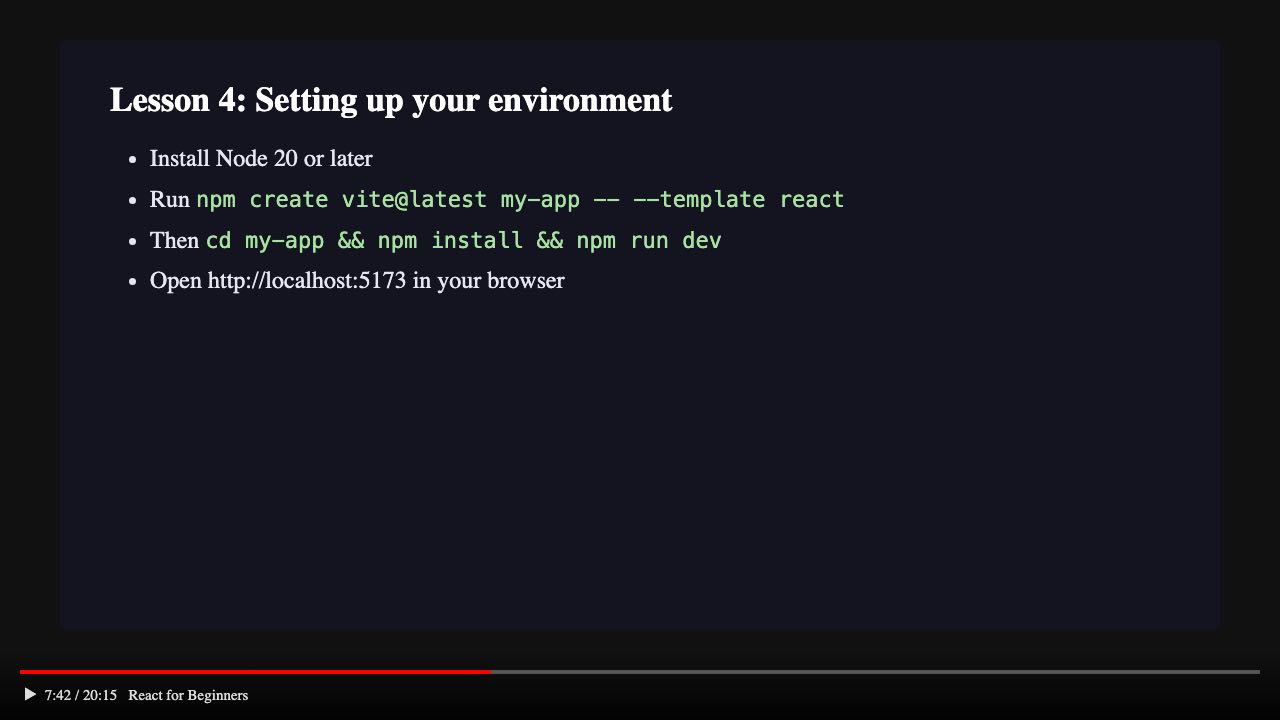
Pause, then grab the text on screen. When Live Text works on YouTube, why it fails in Chrome, and how to copy commands and code from tutorials exactly.
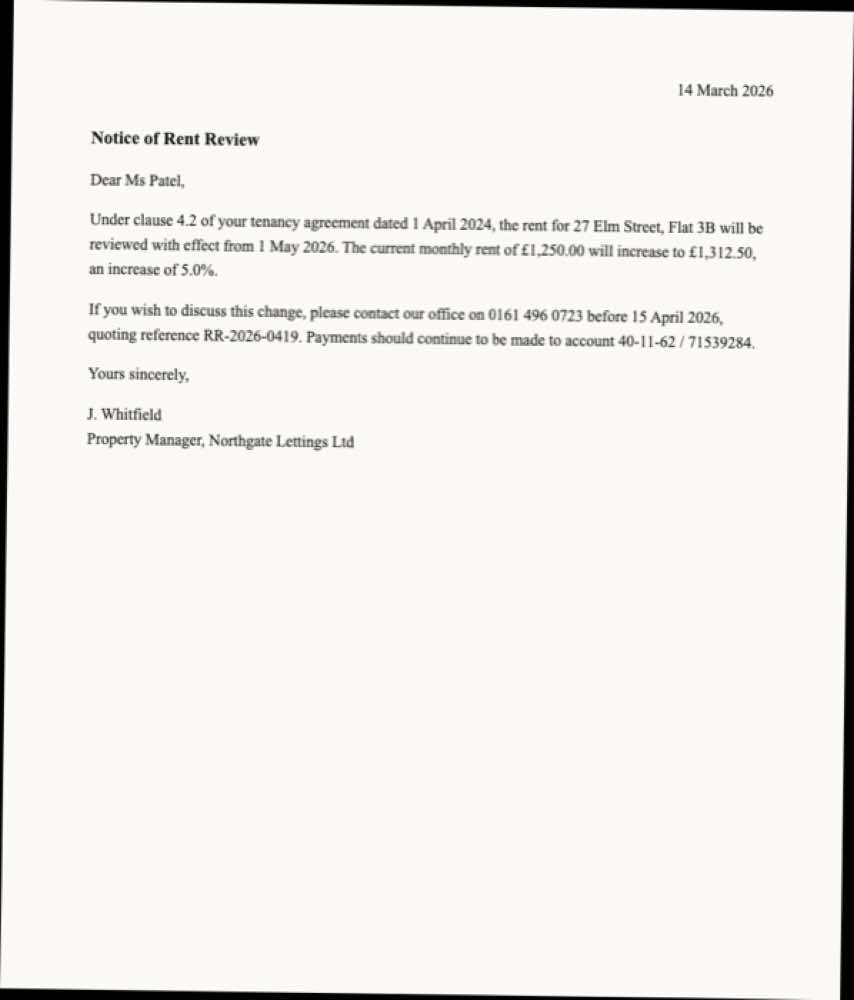
Preview won't select or copy text in your PDF? It's a scan, copy-restricted or broken. How to tell in ten seconds, and the fix for each one.
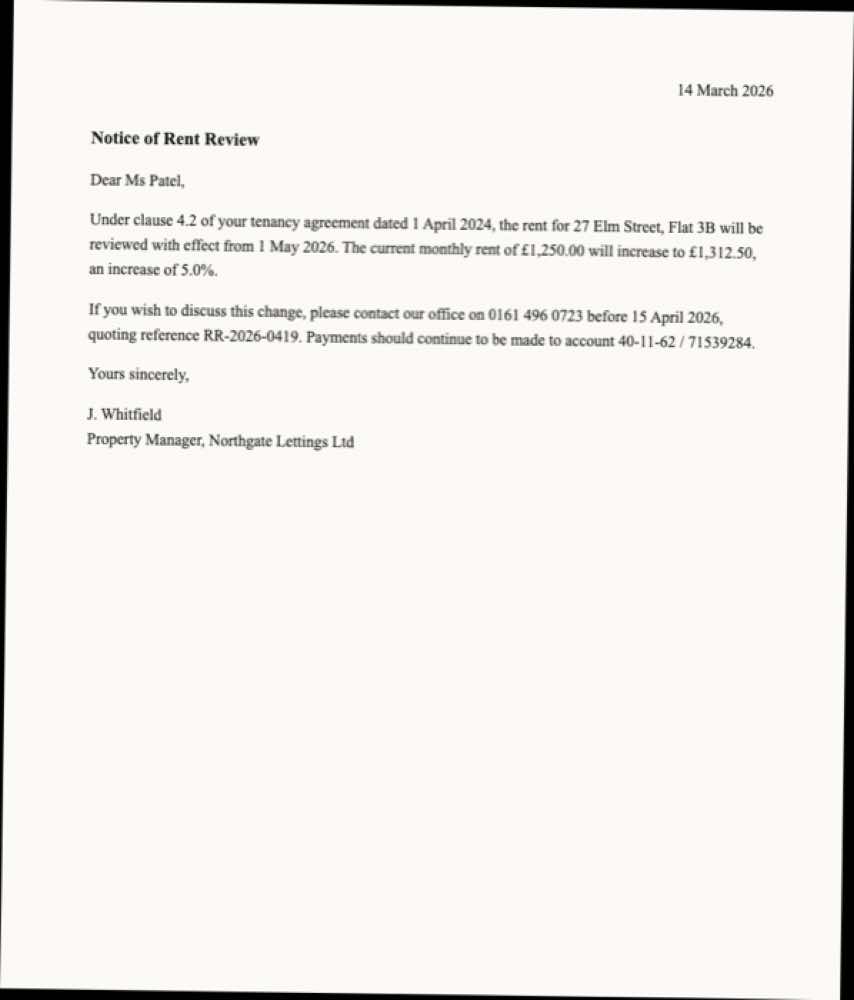
Scanned PDFs are images, so there's nothing to select. Copy text from them on a Mac with Live Text or OCR, plus the errors to check: numbers, £, 1/I.
On-device OCR plus code repair. Free for 5 captures a day, $39 to own for life.