Guide
How to Copy Code From a Screenshot Without Breaking the Indentation
OCR turns code in screenshots into flat lines, breaking Python and JavaScript. Why it happens, the free fix, and how to copy code with indentation intact.
Clipboard blocked or broken in Citrix, RDP or VDI? Read the text off the screen instead. How to do it, and the errors to check in IDs and codes.

Published 2 November 2026
If the session's clipboard is disabled by policy or just broken, the text is still on your screen, so read it with OCR. Capture just the dialog or panel you need, then paste it locally. It's fine for error messages, IDs and short passages. Check codes carefully: in our test, normal OCR silently dropped one character from a 16-character transaction ID and read an underscore as a space. If you're copying anything sensitive, follow your company's data rules. Screen OCR doesn't bypass them, it just reads what's already in front of you.
Here's how to copy text from a remote desktop to your local Mac when the clipboard won't. You're working in a Citrix or Remote Desktop session. An error pops up with an IP address, a return code and a ticket number you need to paste into an email. You press ⌘C, switch to your Mac, press ⌘V, and nothing. The clipboard isn't crossing the session boundary.
Remote sessions pass the clipboard between the remote machine and your Mac through a "clipboard redirection" channel. It fails for two reasons:
Either way you end up retyping long codes by hand, which is exactly where typos creep in.
Disconnect and reconnect the session. In Microsoft's Windows App (formerly Remote Desktop), check the connection's clipboard setting. In Citrix Workspace, check the session's preferences or ask IT. If it works after reconnecting, you're done.
If copying is disabled, the text is still displayed on your Mac, as pixels in the session window. OCR reads it locally:
The free alternative is a screenshot (⌘⇧4), then open it in Preview and select the text with Live Text.
Remote sessions are usually scaled and compressed, which is hard on OCR. We simulated that with an SAP error dialog in a Citrix-style window, scaled down and saved as a low-quality JPEG:
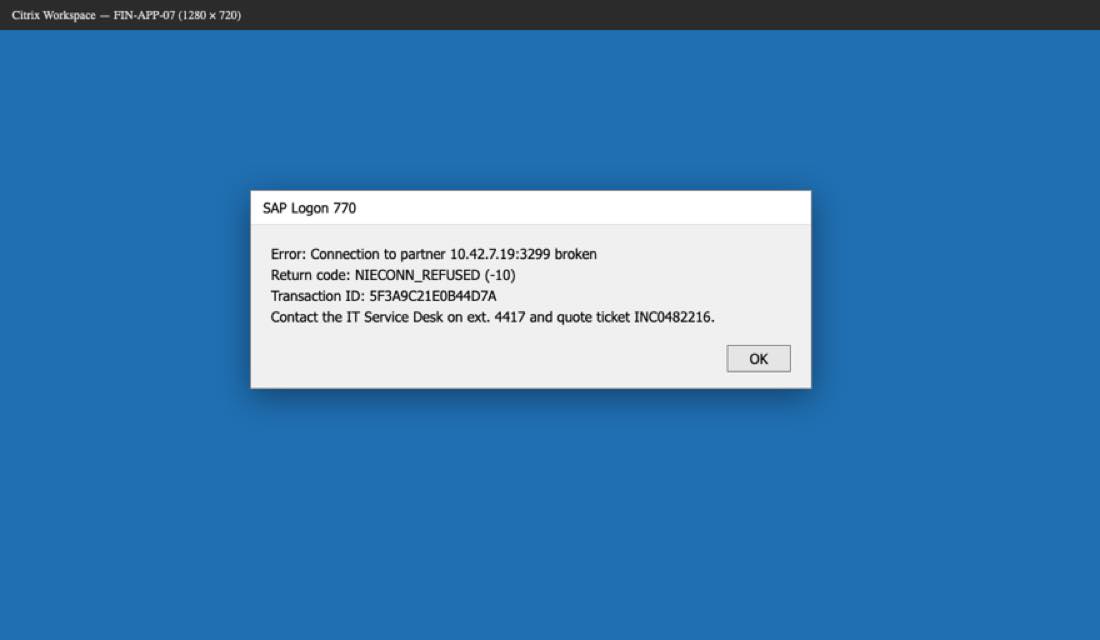
Capturing just the dialog in Normal mode returned:
Error: Connection to partner 10.42.7.19:3299 broken
Return code: NIECONN REFUSED (-10)
Transaction ID: 5F3A9C210B44D7A
Contact the IT Service Desk on ext. 4417 and quote ticket INC0482216.
It looks perfect, but it isn't:
5F3A9C21E0B44D7A became 5F3A9C210B44D7A, with the E gone. Normal mode's language correction "smoothed" the string.NIECONN_REFUSED became NIECONN REFUSED.The IP address, port, extension and ticket number were all correct.
With Optimize for code on, which reads characters literally before tidying, the transaction ID came back correct. The underscore was still a space. So for dialogs full of codes, literal reading helps, but nothing replaces a quick check.
| Situation | Helps? |
|---|---|
| Error messages, IDs, ticket numbers to report | Yes. Check every character of long codes |
| Short passages to quote in an email | Yes |
| Commands or config shown in the session | Yes. See copy text from a VM for code tips |
| Moving files or large documents out of the session | No. That's what the clipboard policy blocks; ask IT |
| Getting around a data-loss-prevention rule | No, and you shouldn't |
The same capture works on anything else on your screen: see how to extract text from a screenshot on Mac.
Usually the administrator has disabled clipboard redirection for security, or the clipboard service in the session has hung. Disconnecting and reconnecting often fixes the second case. The first is deliberate.
Reading text that's already displayed to you is not the same as bypassing a security control, but company policy is what matters. Don't use it to move confidential data out of a locked-down environment.
Words are reliable. Long codes are where errors hide, because remote sessions are scaled and compressed. In our test, one character went missing from a transaction ID in normal mode.
Not with Screenshot Text or macOS Live Text. Both read the screen on your Mac. Online OCR sites would upload the image.
Reach out on X and I'll get back to you personally.
Keep reading
OCR turns code in screenshots into flat lines, breaking Python and JavaScript. Why it happens, the free fix, and how to copy code with indentation intact.
Yes: macOS has built-in OCR called Live Text, in Preview, Photos and Safari. How to use it, where it fails (code, Chrome, Zoom) and what to use instead.
On-device OCR plus code repair. Free for 5 captures a day, $39 to own for life.